Sandra Lothian from the New South Wales YMCA asked a question (login req) in the Yacapaca forum yesterday:
Once you have created a quiz, short-text assessment or eportfolio. Where do you go to preview what it will look like?
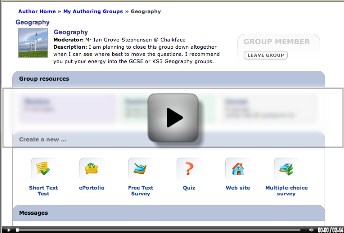
A great chance to try out Jing, a ‘casual screencasting’ tool I’ve just started using. Here’s how it works. Once installed, Jing leaves a little menu permanently on your screen. At any time you can define an area of the screen and start recording it. When done, click the ‘share’ button and the video uploads itself to a server and send back a url that you can use as a link. In the case of the video I did for Sandra it’s http://www.screencast.com/t/W_KliBfnvW
Until now, screencasts have been quite complicated to make. You had to master a powerful program like Captivate (PC only – yuk!), organise hosting, get an FTP program to upload files, etc, etc. For the screencast-based Yacapaca Training Disk, I hired the extremely competent Mike Highfield to do it all for us, and got a great result. But that took money and time as you will know if you were one of the people we kept waiting for the new disk.
For on-the-fly class teaching Jing is a brilliant tool. Jing itself is free, but the screencast hoting service that makes it so compelling cost £3.50/month after the first two months. If you use it regularly (and I think I shall), that’s astonishingly good value.
Meanwhile – did my screencast do its job? Well, Sandra is blogging her experience of Yacapaca, so why not go and ask her!


 Chalkface Blog
Leave a comment